
Understand interview templates
Use templates to give interviewers a consistent purpose, question structure and evidence focus. To see this on screen, watch the film.
Interview questions pass through four steps. Each step starts as a copy of the step before it, and each step has its own owner. A change reaches down to new work. It never reaches up. The film shows the four steps in a little over two minutes.
| Step | Who changes it | Where you change it | What the change reaches |
|---|---|---|---|
| 1. HireBest's best practice. The HireBest Standard templates, one or more for each round. | Nobody. They are view-only for everyone. | Nowhere. Duplicate one to make it your own. | Nothing |
| 2. Your company's version. The templates that your organization made, usually as a duplicate of a Standard. | An Admin or a Super Admin | Interview Templates in the sidebar | New jobs, when the template is the company default. New interviews of the jobs that use the template and have no copy of it. |
| 3. The guide for one job. The templates on the job's rounds. The first change from a job makes a copy of the template for that job only. | The Hiring Manager, the TA Partner, an Admin or a Super Admin | The job's Interview Guide tab | New interviews of that job, and scheduled interviews when you select Apply |
| 4. The guide for one interview. Each scheduled interview has its own copy of the questions. | The interviewer adds questions and notes. The interviewer changes or hides questions only when the job allows it. | Customise guide on the interview | That interview only |
What a new job starts with
A new job has one template on each of its four rounds: Screening, First Round, Decision and Reference. For each round, it gets your company default template. If your organization has no company default for a round, it gets the first HireBest Standard template for that round. The Reference round is off until you turn it on in Setup → Interview Rounds. To use another template, add it to the round. See Add templates to a job.
A change to the company defaults reaches only new jobs. Jobs that exist keep their templates.
Choose which templates jobs can use
An Admin or a Super Admin sets these on the Interview Templates page. The settings apply to the whole organization.
- Set the company default for a round. Select the round's category on the left: Screening, First Round, Career (the Decision round) or Reference. Under New jobs start with, pick one of your templates. To go back to the HireBest Standard, pick the item that starts with "HireBest standard:". You can also select Make default for new jobs in the menu of one of your templates. Select Stop using as default to remove it. The default must be one of your own templates. To start from a HireBest Standard, duplicate it first. Your default shows Default for new jobs.
- Hide a HireBest Standard template. In the template's menu, select Hide from jobs. The template shows Hidden from jobs. Select Show in jobs to use it again.
- Hide a whole category. Select the category on the left, then select Hide from jobs. For example, hide Education if your jobs never discuss school years.

A hidden template is not in the template list of a job's Setup tab, and a new job does not get it. If you hide the HireBest Standard of a round and set no company default, a new job starts with no template on that round. If you hide the category of a round, a new job starts with no template on that round, also when the round has a company default. A job that already uses a hidden template keeps it. HireBest Standard templates stay view-only: hiding one does not change it.
Keep the structure the same across jobs
Put the structure that you want in a template in the library, and tell your teams to use it. HireBest has no setting that locks a template. The Hiring Manager, the TA Partner, an Admin or a Super Admin can change a job's copy. The interviewer can add questions and notes to the guide of their own interview. The interviewer cannot change or hide the job's questions, unless the job allows it: in the job's Setup tab, the Hiring Manager, the TA Partner or an Admin can turn on Interviewers can change and hide questions in their own guide. Use prompts and interviewer notes to fit a job, and keep the questions the same.
To see what a job changed, select Compare with the template in the job's interview guide.
Who can do this
- Admins and Super Admins see Interview Templates in the sidebar. Other people read the questions in the interview guide of a job that they can open.
- Only an Admin or a Super Admin can create, change or delete a template in the library. HireBest Standard templates are view-only for everyone: duplicate one to change it.
- Only an Admin or a Super Admin can set the company defaults and hide templates or categories.
- The Hiring Manager, the TA Partner, an Admin or a Super Admin can change the questions for one job in that job's interview guide.
Before you begin
Finalise the job’s Cipher before choosing the detailed interview plan so the template can support the outcomes and evidence required.
Review templates
-
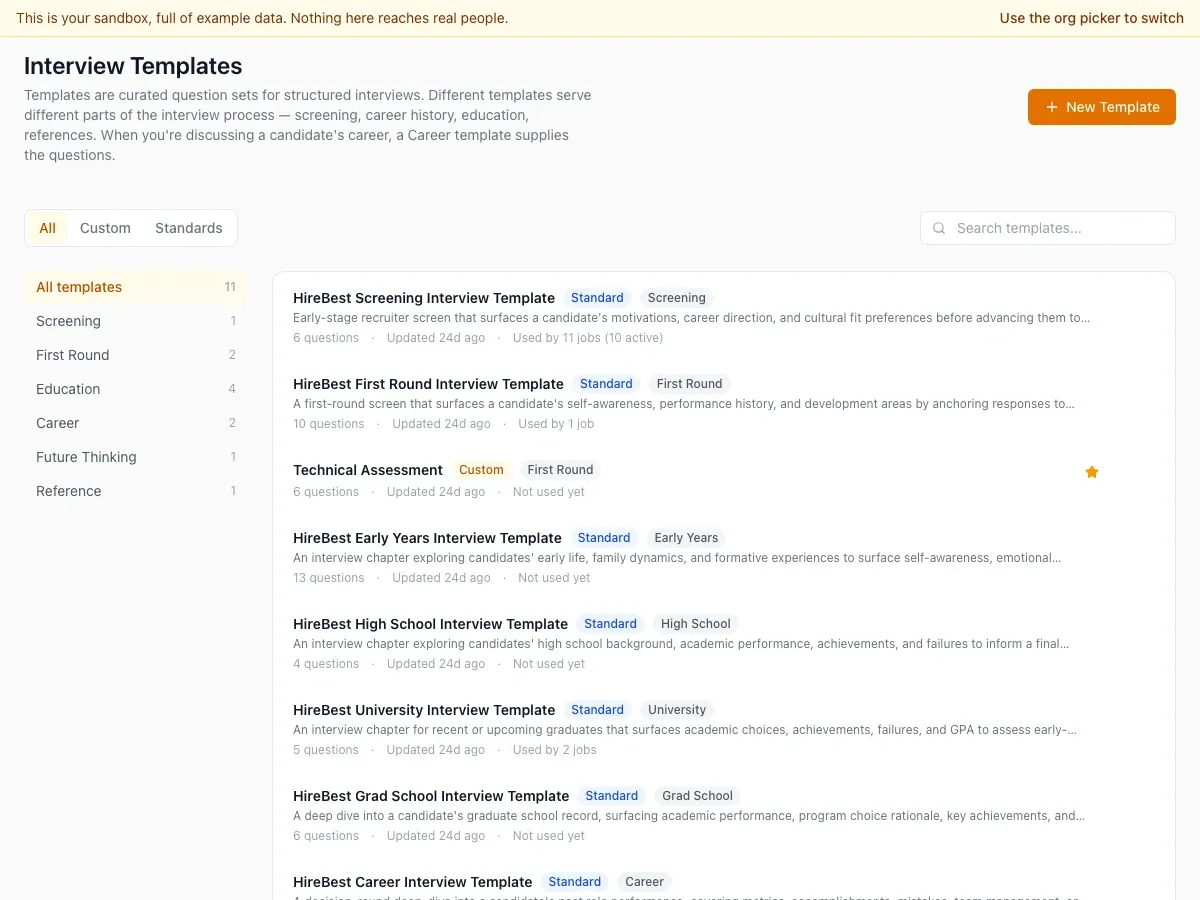
Open Interview Templates to see the available library. The categories are on the left. Select one to see its templates, or select All templates. Use All, Custom and Standards and the search box to find a template. Each template shows how many jobs use it, including the jobs that have their own copy.
-
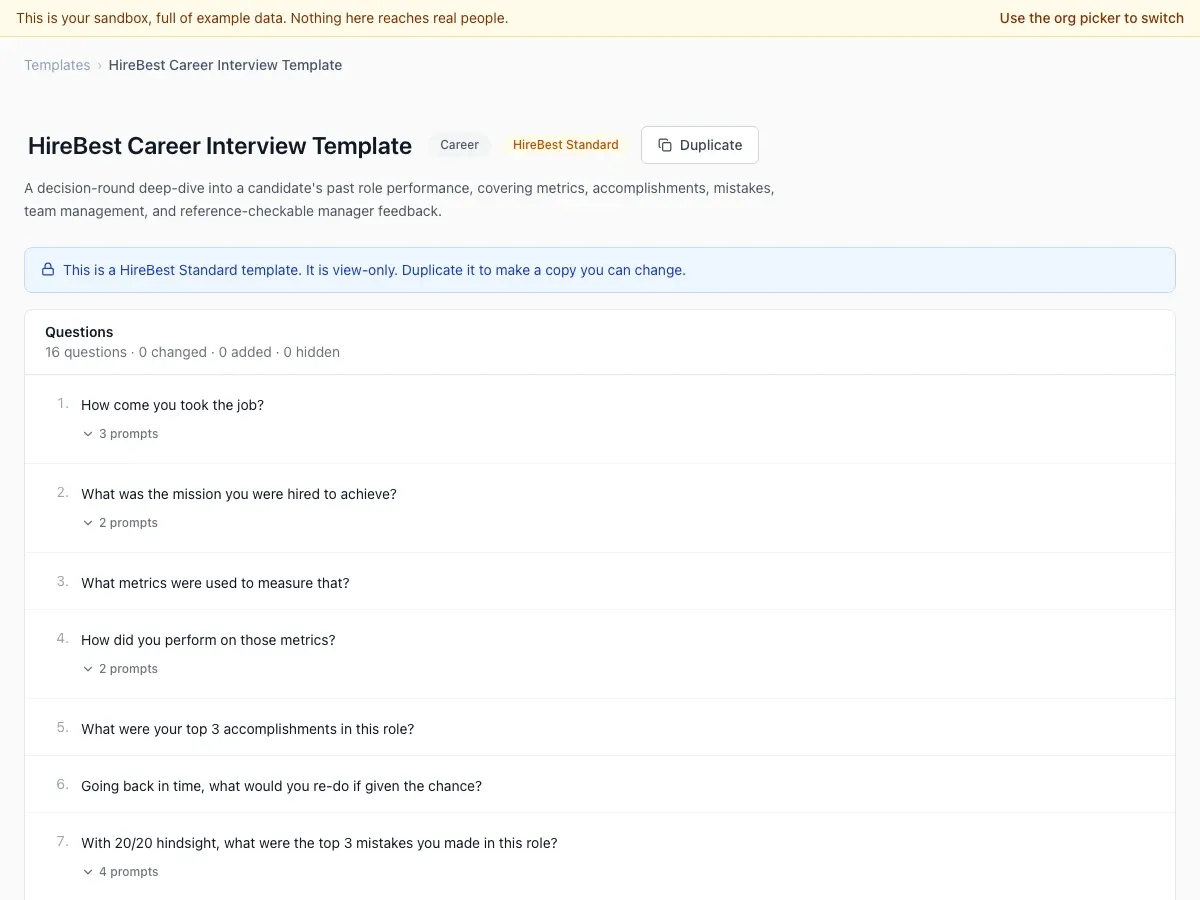
Open a template and review its questions. Each question shows its tags, its follow-up prompts and its interviewer note.
-
Decide whether it fits the job as written. To fit it to one job, add it to the job and change it in the job's interview guide. To make a new template for many jobs, duplicate it.
What happens next
Add the selected templates to the job's rounds. A library template does not become part of a job until it is added there.
A change in the library reaches the new interviews of the jobs that use the template and have no copy of it. Interviews that are already scheduled keep their questions. A job that has its own copy keeps its copy.
Common problems
- "This round has no interview guide yet, so interviewers get no questions for it.": you see this when you schedule an interview. The job has no template on that round. Open the job, select Setup, go to Interview Rounds and select Add template.
- A template is not in the library: confirm the organization, the category on the left and any list filters.
- A template is not in a job's template list: an Admin hid the template or its category. An Admin can select Show in jobs on the Interview Templates page.
- You cannot edit the original: a HireBest Standard template is view-only. An Admin can duplicate it and change the duplicate.
- A job's questions did not change after a library edit: that job has its own copy. Change it in the job's interview guide.
- Questions do not fit the job: change them in the job's interview guide, or return to the Cipher first.