
Prepare for an interview
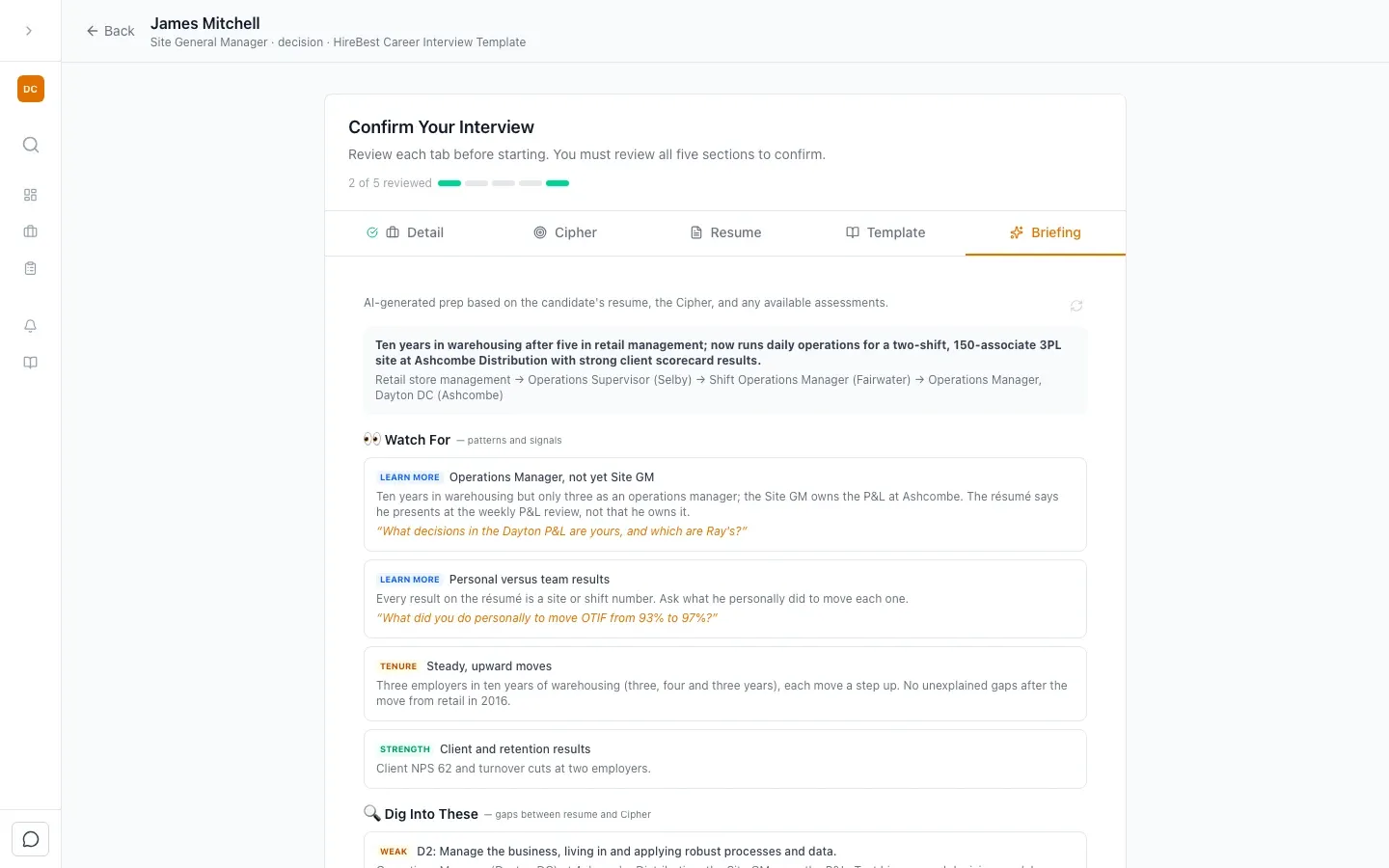
Use the briefing to understand the interview’s purpose, candidate context and evidence focus before you begin.
Who can do this
The assigned interviewer and other job team members with access to the interview can view the preparation material allowed by their role.
Customise guide (change the questions for one interview) is for these people:
- the Hiring Manager of the job, the TA Partner of the job, an Admin or a Super Admin: they can make every change
- the interviewer named on the interview: they can add questions and notes
The interviewer cannot change, hide or move the questions that come from the job's guide. They can change or hide a question that was added for this interview. The guide shows them this note:
"You can add questions and notes for this interview. You cannot change or hide the job guide's questions. The hiring manager or the TA partner can allow this in the job's Setup tab."
To let interviewers change and hide all the questions in their own guide, the Hiring Manager, the TA Partner or an Admin turns on Interviewers can change and hide questions in their own guide in the Interview guides section of the job's Setup tab. It is off when a job is created.
Nobody can swap the template of one interview in Customise guide.
Other people who can see the interview can read its guide, but cannot change it.
Before you begin
Open the correct interview and allow enough time to review its purpose and questions. Follow your organization’s rules for candidate information.
Prepare
-
Open the scheduled interview from HireBest.
-
Review the candidate, job, interview purpose and planned questions.
-
Read the briefing as preparation, then return to source information where a detail matters.
-
Confirm that your meeting, microphone and note-taking arrangements are ready. If the scheduler added a meeting link, it shows on the Detail tab. Click it to open the meeting in a new tab.
Change the questions for this interview
Each interview has its own copy of the job's questions. You can change this copy before the interview starts. What you can change depends on your role (see Who can do this). The change stays in this interview. The job's interview guide and the other interviews do not change.
-
Find the interview on the candidate's application, on the Interviews tab. You can also find it on the job's Interviews tab or on the candidate's page.
-
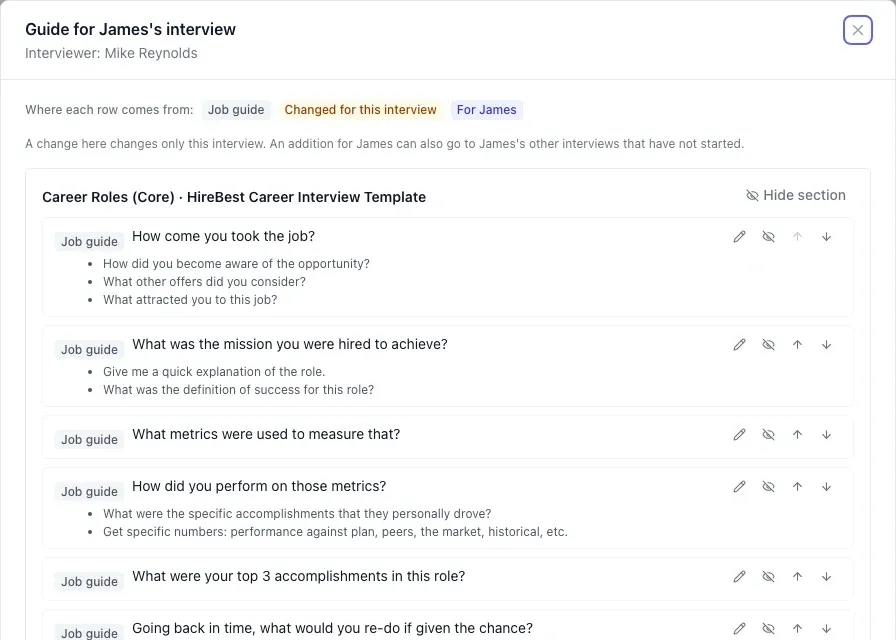
Select Customise guide on the interview. The guide for the candidate's interview opens. There is one section for each template that the interview uses, with the round name and the template name.
-
Each question has a chip that shows where it came from:
- Job guide: the question is as it is in the job's interview guide.
- Changed for this interview: someone changed the question for this interview only.
- For {first name}: someone added the question for this candidate. The chip shows the candidate's first name.
-
Change the guide:
- Add note (interviewers, when the job does not let them change questions) adds to the interviewer note of a question. Type the note and select Add note for this interview. The note from the job's guide stays.
- Edit opens the question. Change the question text, the prompts (one on each line) and the interviewer note. Then select Save for this interview.
- Hide takes the question out of this interview. A hidden question is struck through. Select Show to use it again.
- Move up and Move down (the arrow buttons) change the order of a question in its section, for this interview only.
- Hide section takes all the questions of that template out of this interview. Select Show section to use them again.
- An interviewer whose job does not allow changes sees Edit and Hide only on the questions added for this interview, and does not see Move up, Move down or Hide section.
- Add for {first name} adds a question to the section. Type the question and select Add.
-
When you add a question, the box Also add to {first name}'s other interviews that have not started is selected. Keep it selected to add the question to the candidate's other scheduled interviews that use a template of the same round. HireBest adds it only to the interviews that you can change. Clear the box to add the question to this interview only.
-
Look at Henry's suggestions. The briefing finds points to probe for this candidate and puts each point on the question it fits, for example "Ask why they left Acme after 8 months" on "Why did you take that job?". Each point shows under its question as Henry suggests.
- Add makes the point the interviewer note on that question. The note shows with the question in the interview. A green line, Added as an interviewer note, shows where the point was.
- Dismiss removes the point. It does not show again, also when the briefing is made again. A grey line, Suggestion dismissed, shows where the point was.
- A point that fits no question shows under Also probe, at the end of the guide. Select Add to question. In the Question list, choose a question of the guide, then select Add. The point becomes the interviewer note on that question. Select Cancel to go back. You can also dismiss the point.
-
Select Done.
On the candidate's Interviews tab, a small label on each scheduled interview, next to Customise guide, tells you where Henry is. You see it for the interviews whose guide you can change:
- Preparing briefing: Henry is still working. The label updates by itself.
- 3 to review: Henry has suggested notes. Select the label to open Customise guide and add or dismiss them.
- Briefing didn't finish: open the interview, and HireBest tries again.
If you started a Cipher rating for an interview and did not submit it, the interview shows Resume rating. Select it to finish the rating.
After a change, the interview briefing uses the changed questions. A new briefing can bring new suggestions. A point that you added or dismissed does not come back.
Henry's suggestions during the interview
In the interview, a suggestion that you did not add or dismiss still shows on its question, in a lighter style, under Henry suggests. A dismissed suggestion does not show. An added suggestion shows as the interviewer note.
The email that tells you an interview was scheduled links to this guide.
After the interview starts
The interview starts when the interviewer selects Send Bot to Meeting or Start without transcription in the conductor. If an interview still shows as scheduled while the interviewer works in the conductor, the first question or note starts it.
When the interview starts, its guide is locked. You can no longer add or dismiss Henry's suggestions. Customise guide then shows this note:
"This interview has started, so its guide is locked. It shows the questions as they were at the start."
If you cannot change the guide
If you are not the interviewer, the Hiring Manager, the TA Partner or an Admin, the guide opens read-only. The note says who can change it.
What happens next
When it is time, enter the interview conductor and follow the structured question flow while listening naturally to the candidate.
Common problems
- The briefing is unavailable: confirm the interview is scheduled and that you are assigned to it.
- Candidate context looks incomplete: review the candidate record and source résumé before the meeting.
- You opened the wrong interview: return to the job and verify the candidate and template.
- A question changed for this interview did not change in the job's guide: this is correct. A change in Customise guide stays in one interview. To change the questions for every interview of the job, use the job's Interview Guide tab.
- A change to the job's interview guide is not in this interview: the interview has its own copy. Ask the Hiring Manager, the TA Partner or an Admin to select Apply to N scheduled interviews in the job's interview guide. Apply keeps the questions that someone changed for this interview.
- The guide says that it is locked: the interview has started. Its questions cannot change.
- There are no Henry suggestions: the briefing is not ready yet, it found nothing to probe, or the interview was scheduled before suggestions were available. Interviews scheduled before then keep their briefing as it is.