
Turn on Hogan and add a payment card
Hogan assessments are personality assessments (HPI, HDS, MVPI and HBRI). Before your teams can order one, an Admin turns Hogan on, names at least one approver, and adds a payment card.
Who can do this
Admins and Super Admins.
Turn on Hogan
-
Click your organization's name at the top of the sidebar, then click Admin.
-
Open the Assessments tab. Find Hogan Assessments and click Configure.

-
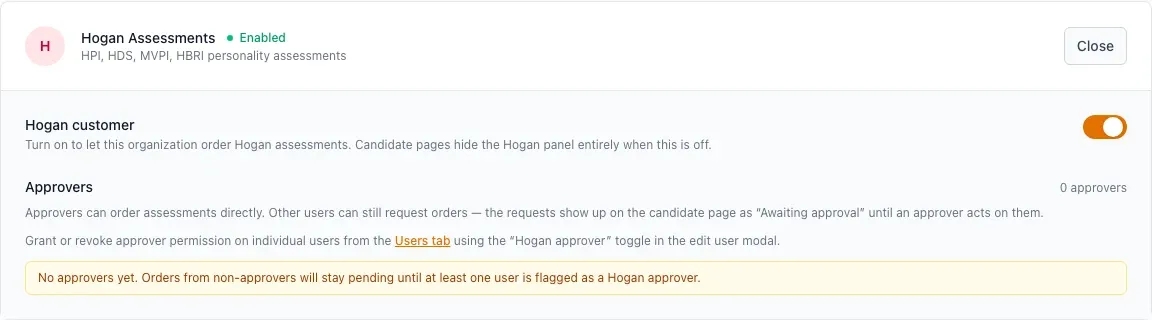
Turn on Hogan customer. When it is off, candidate pages do not show the Hogan panel.
-
Check the Approvers count. If it is 0, orders from other people stay pending. Set the Hogan approver flag on at least one person in Edit User. See Manage team members.
Add a payment card
-
Open the Billing tab.
-
Under Payment Method, click Add card, enter the card details and click Save card.
-
Under Billing Email, click Edit and enter the address that gets receipts. If you leave it empty, receipts go to the organization's Admin.
What happens next
Users can order assessments from a candidate's record. Charge History on the Billing tab lists each charge, with a receipt link.
Common problems
- "No payment method on file": add a card. Users cannot order without one.
- Orders stay "Awaiting approval": no approver has acted yet. Check that at least one person has the Hogan approver flag.
- You removed the card: new orders stop until you add a new card.