
Manage team members
Keep each person's role and flags correct as their work changes.
Who can do this
Admins and Super Admins.
Before you begin
An organization role is separate from a job's hiring team. A role change does not add or remove anyone from a job.
Review the members
-
Click your organization's name at the top of the sidebar, then click Admin.

-
The Users tab lists every member with their Role and Status. Click a column heading to sort. Use Search users... to find a person by name, email or role.
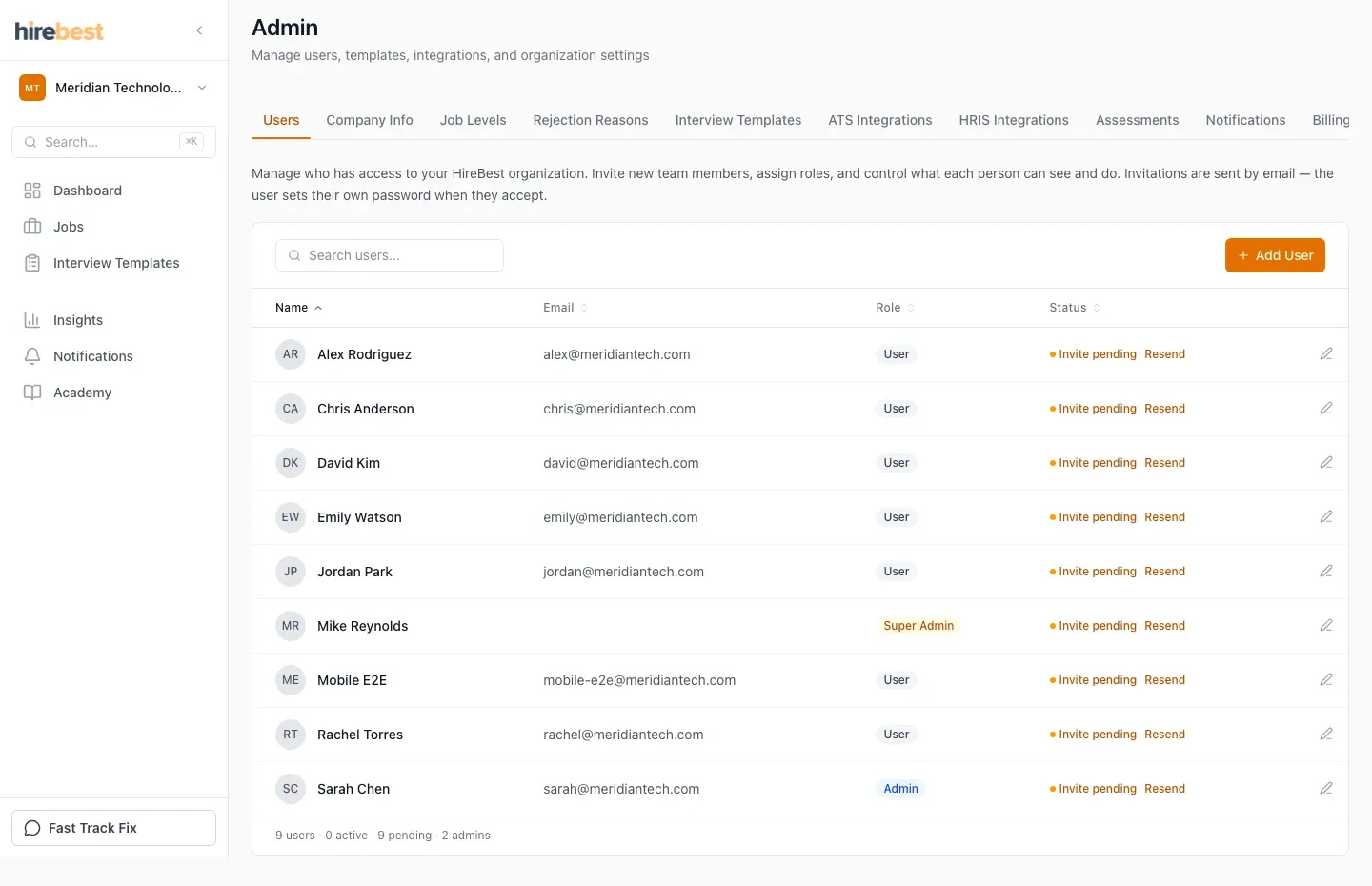
The status is Active, Invite pending or Archived. The TA and Hogan approver badges show the flags.
Change a role or a flag
- Click the pencil icon next to the person.
- In Edit User, choose the Role.
- Turn Talent Acquisition on or off. A TA-flagged person can choose the Hiring Manager and TA Partner when they create a job.
- Turn Hogan approver on or off. An approver's Hogan orders go straight to the candidate. Other people's orders wait for an approver.
- Click Save Changes.
Other actions in Edit User
- Resend Invitation Email: for a person who has not signed in yet.
- Send Password Reset: sends the person a password reset email.
What happens next
The change applies at once. HireBest records each role change.
Common problems
- You cannot see Admin in the menu: you need the Admin or Super Admin role.
- A person must lose access: contact HireBest support to archive them. An archived person keeps their history but loses access to the organization's data.
- Resend Invitation Email is greyed out: the person has already signed in. Send a password reset instead.