
Invite a colleague
Invite a colleague so they can sign in and join the hiring teams of your jobs.
Who can do this
Admins and Super Admins.
Before you begin
- Get the colleague's work email address.
- Decide their role. Most people need User. See Understand customer roles.
Send an invitation
-
Click your organization's name at the top of the sidebar, then click Admin.
-
On the Users tab, click Add User.
-
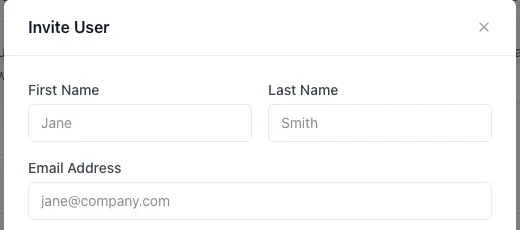
Enter First Name, Last Name and Email Address.
-
Choose a Role: Super Admin, Admin or User.
-
Click Send Invitation.
What happens next
- A new person gets an email with the subject "You're invited to your organization on HireBest". They click Accept invitation, set their name and a password of at least 8 characters, and accept the terms. The Users list shows them as Invite pending until they sign in.
- A person who already has a HireBest account is added at once. HireBest sends no email. They sign in with their existing password and choose your organization from the organization list.
The invitation does not put the colleague on any job. Add them to each job's hiring team.
Common problems
- "This user is already a member of your organization": the person is already in the Users list. Edit their role instead.
- The invitation did not arrive: check the address and ask them to look in their spam or quarantine folder. Then click Resend next to their name in the Users list.
- They cannot see a job after they join: add them to that job's hiring team.