
Read Insights
Insights shows how your team hires. Each tab answers one question about the jobs, candidates and interviews that you are permitted to see.
Who can do this
- Admins and Super Admins see all six tabs: Jobs, Candidates, Pipeline, Risk & Compliance, Interviewers and Team Activity.
- Users see Insights only while they are the Hiring Manager or TA Partner of at least one job that is not archived. They see the Jobs, Candidates and Pipeline tabs, with data for the jobs that they lead only.
- Other users do not see Insights in the navigation. If they open the Insights address, HireBest opens the dashboard.
Before you begin
Confirm that the organization shown at the top of the sidebar is the one you want to review.
Use the tabs
-
Choose Insights from the main navigation.
-
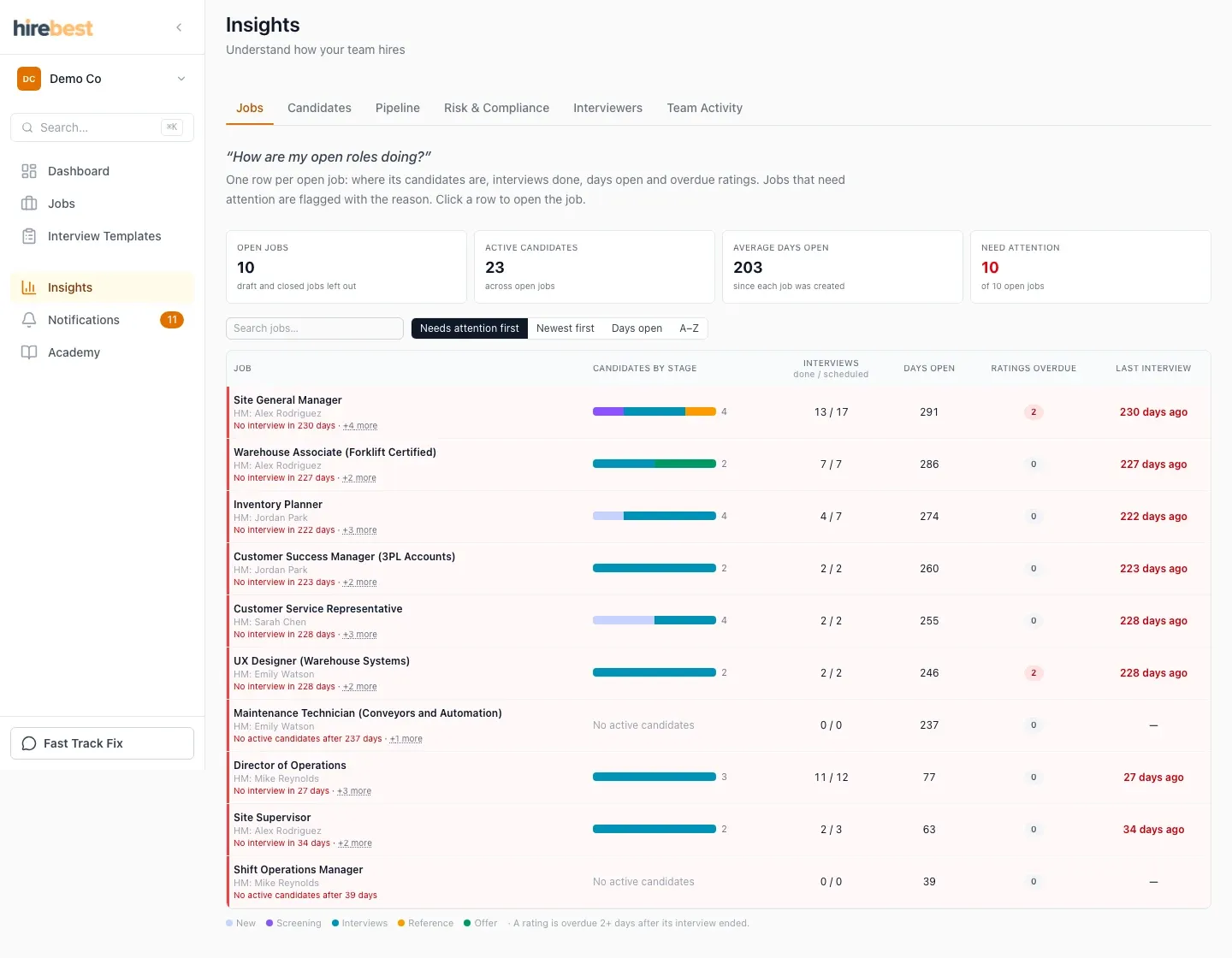
Select a tab. Each tab shows its question and a short description above the data.
-
Use the controls above the table. Each tab has a search box and sort buttons. Pipeline also has a Job list and a period. Risk & Compliance, Interviewers and Team Activity also have a period.
-
Read the summary boxes at the top of the tab, then the rows. A row that needs attention is flagged with the reason.
-
On the Jobs, Candidates, Risk & Compliance and Interviewers tabs, click a row to open the record behind it. On Team Activity, click a number to see the list behind it.
What each tab shows
- Jobs: one row for each open job, with where its candidates are, interviews done, days open and overdue ratings.
- Candidates: one row for each candidate application, with stage, interviews, average Cipher score, Hogan status and last activity. Click a stage box to filter the rows. Select Compare and pick a job to put its candidates side by side.
- Pipeline: how far the candidates who applied got, where the others went, the top rejection reasons at each stage, and the pass rates of each job.
- Risk & Compliance: the process steps that each job skipped, and interview statements flagged as a discrimination risk.
- Interviewers: one row for each interviewer with an analysed interview, with a grade, talk share and question coverage. Click a row to see that person's interviews.
- Team Activity: one row for each active member, with the work they owe now, what they did in the period, and when they last signed in.
Missed and incomplete interviews
After the end time of an interview, Insights checks whether the interview was completed. An interview that was not completed is one of these:
- Missed: the interview never started, and nothing was recorded for it.
- Incomplete: the interview started, or the interviewer selected questions or wrote notes, or a transcript was recorded, but nobody completed it.
The Jobs tab flags a job with "Missed interview" or "Incomplete interview", or with the number of each. On Team Activity, the Missed and Incomplete columns count each person's interviews in the period. The Missed interviews summary box also gives the number of incomplete interviews.
If an incomplete interview took place, the interviewer opens it in the conductor and selects End & Review. See Finish an interview.
What happens next
Use the underlying jobs, candidates and interviews to understand an unexpected result. Treat small samples and incomplete process data with caution. Insights helps you review the work; people make the hiring decisions.
Access follows your organization role and job access, so colleagues may not see the same totals.
Common problems
- Insights is not in the navigation: you are not an Admin or Super Admin, and you do not lead a job as its Hiring Manager or TA Partner.
- A tab shows "could not load. Try again later.": the data for that tab did not load. The other tabs still work. Reload the page later.
- A job is missing from the Jobs tab: the tab shows open jobs only. A User sees only the jobs that they lead.