
How do I add a colleague?
There are two steps: invite your colleague to your organization, then add them to the hiring team of a job.
1. Invite them to the organization
Only an Admin or Super Admin can do this.
- Click the organization name at the top of the sidebar, then click Admin.
- On the Users tab, click Add User.
- Enter the colleague's name and email address, and choose a role. The default role is User.
- Send the invitation. Your colleague gets an email to set up their account.
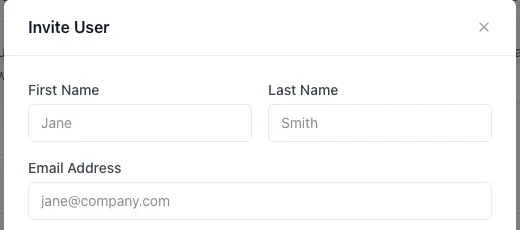
You can mark a user as Talent Acquisition or as a Hogan approver later, when you edit the user. See Invite a colleague and Understand customer roles.
2. Add them to a job's hiring team
Once your colleague is a member of the organization, the job's Hiring Manager, TA Partner or an Admin can add them to the hiring team. See How do I create the hiring team?