
Record a hiring decision
Record the decision only after the responsible people have reviewed the evidence and completed the required process.
The job's Hiring Manager or TA Partner records the decision. The Make Decision button appears on the candidate's page once the candidate is at Interviews and has at least one completed Cipher rating.
Record the outcome
-
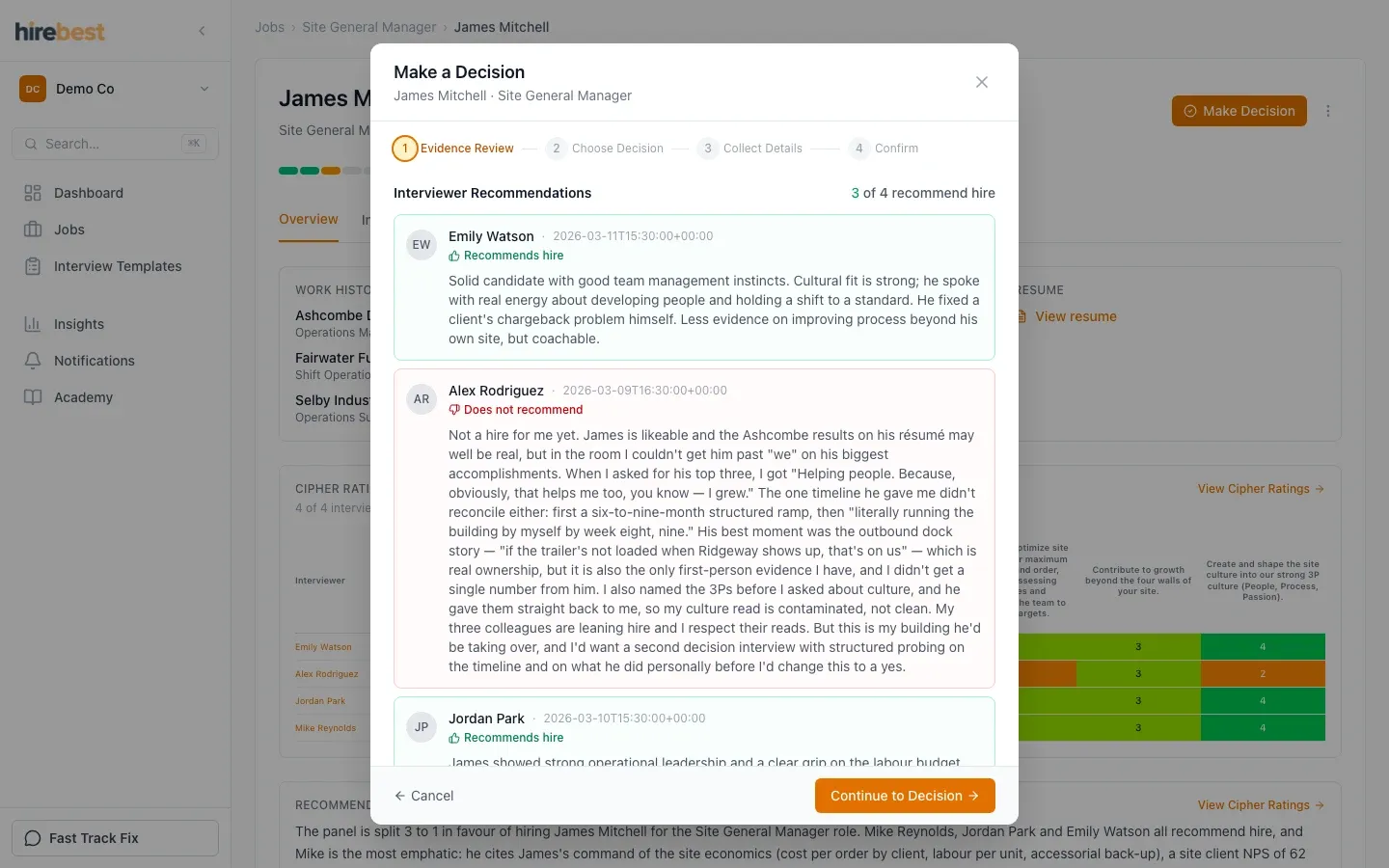
Open the candidate record and select Make Decision. Review the interviewers' ratings, then select Continue to Decision.
-
Choose Hire, Unclear or Don't Hire.
-
Add the details for that outcome:
- Hire: open questions to answer, selling points, and areas to support. The candidate moves to Reference Check.
- Unclear: the open questions still to answer. The candidate stays at Interviews.
- Don't Hire: pick a Rejection reason (required, so the rejection counts in Insights), then add feedback for the candidate and other open jobs they might suit. HireBest does not send the feedback; you pass it on yourself. The candidate is marked Rejected.
-
Select Review & Confirm. Check the candidate, the job and what the decision will do, then select the confirm button (for example, Confirm Hire).
-
Continue with your organization’s communication and approval process. HireBest does not replace that process or make the decision for you.
After the decision
The candidate's page shows the decision at the top: the outcome, who made it, when, and the answers. The Hiring Manager, the TA Partner and admins see it; interviewers do not.
If the decision has open questions, select Schedule a follow-up interview on it. Every interview scheduled after the decision shows Open questions from the hiring decision at the top of its guide and of the interview screen, so the interviewer knows what to ask.
Common problems
- Make Decision does not show: confirm that you are the job’s hiring manager or TA partner, that the application is at Interviews, and that at least one Cipher rating is complete.