
Send candidates to a client
If you recruit for other companies, you run every search in your own HireBest company and send your best candidates into the client's HireBest company when they are ready. The client sees the job, the cipher and each candidate you send, with your cipher rating. Nothing else in your company reaches them.
Who can do this
Send to client appears only in a recruiter company. HireBest sets a company up as a recruiter company on request; contact support@hirebest.ai to ask for it.
In a recruiter company, anyone who can manage the job can send from it: organization administrators, and the job's hiring manager or talent acquisition partner. You can send only to a company you belong to. If the client has archived you in its company, you can no longer send to it.
Before you begin
- Ask for your client's company. Contact support@hirebest.ai to set up a HireBest company for your client and add you to it. Until the client signs on, you are its Super Admin, so you can set up its details, job levels and rejection reasons, and invite the client's people.
- Build the cipher. A job needs a cipher before its first send. Your cipher locks when you first send it, so build it first, and agree it with your client if you can.
- Rate your candidates. Hold your own interviews in the Screening round, with your own Screening templates, and complete a cipher rating for each candidate you want to send. The rating is the client's main evidence.
- Ask each candidate for permission. You confirm that you have each candidate's permission to present them to the client before every send.
Send candidates
-
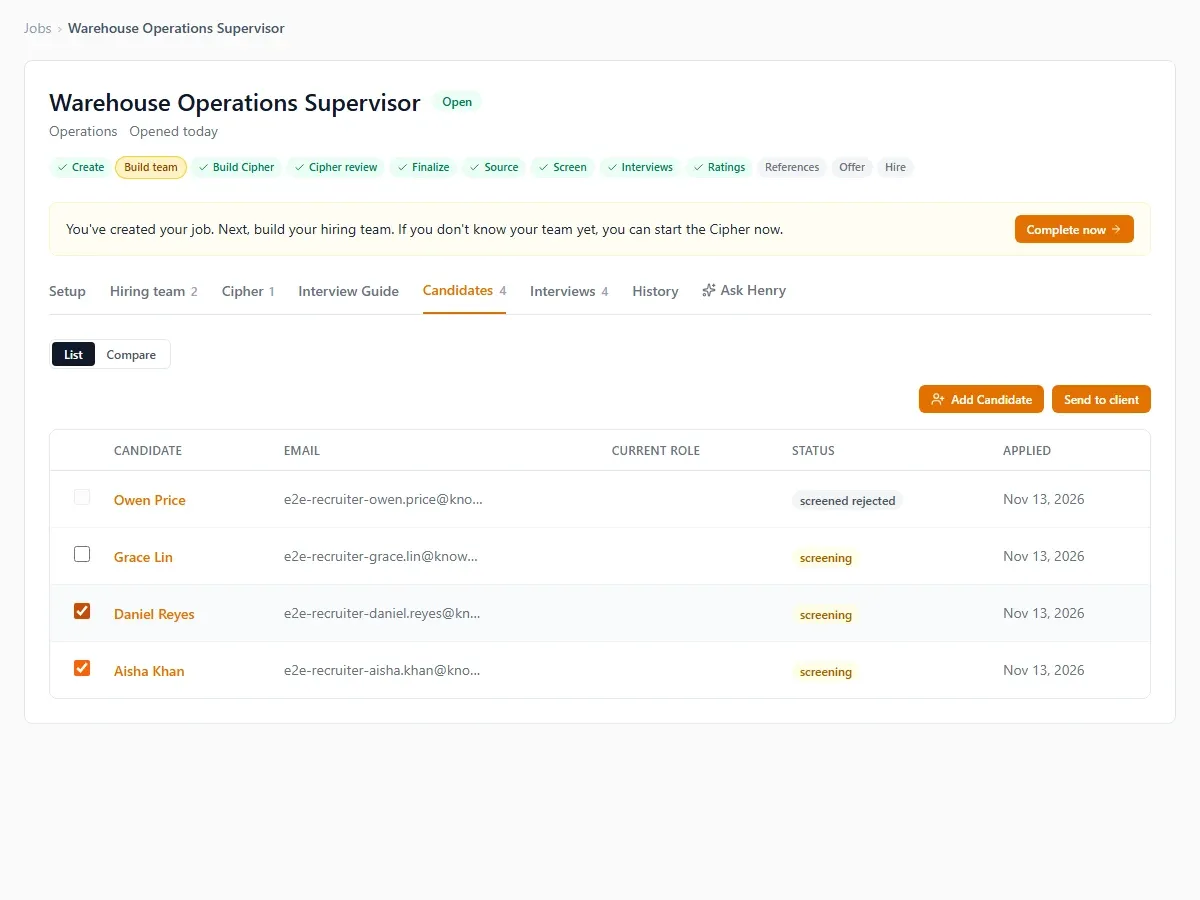
Open the job and go to its Candidates tab.
-
Tick the box beside each candidate you want to send. Rejected candidates, and candidates you already sent, cannot be ticked.
-
Select Send to client. To send the job and cipher with no candidates, for example so the client's hiring manager can review the cipher, select Send to client without ticking anyone.
-
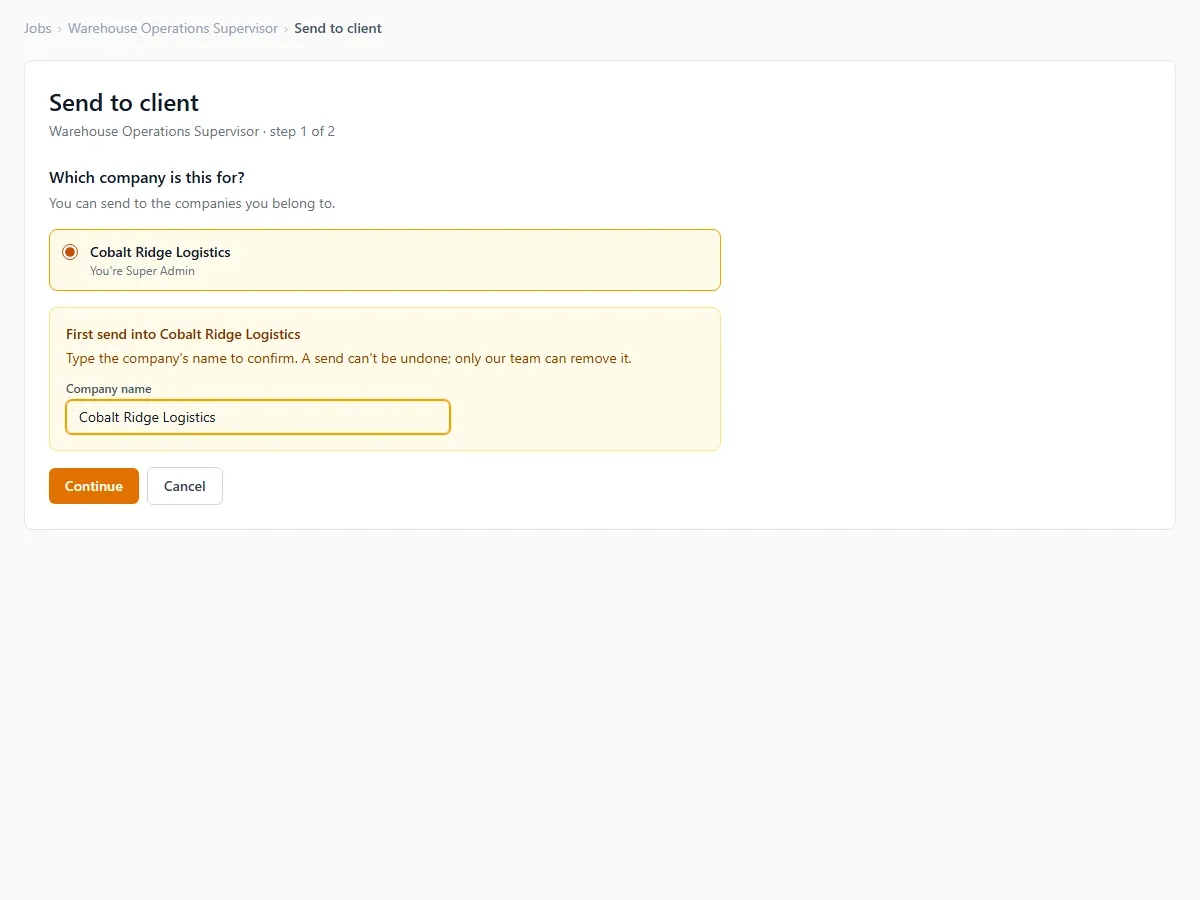
Pick the client's company. The list shows the companies you belong to, and your role in each.
-
On your first send into that company, type the company's name to confirm it. A send cannot be undone, so this guards against the wrong company. Select Continue.
-
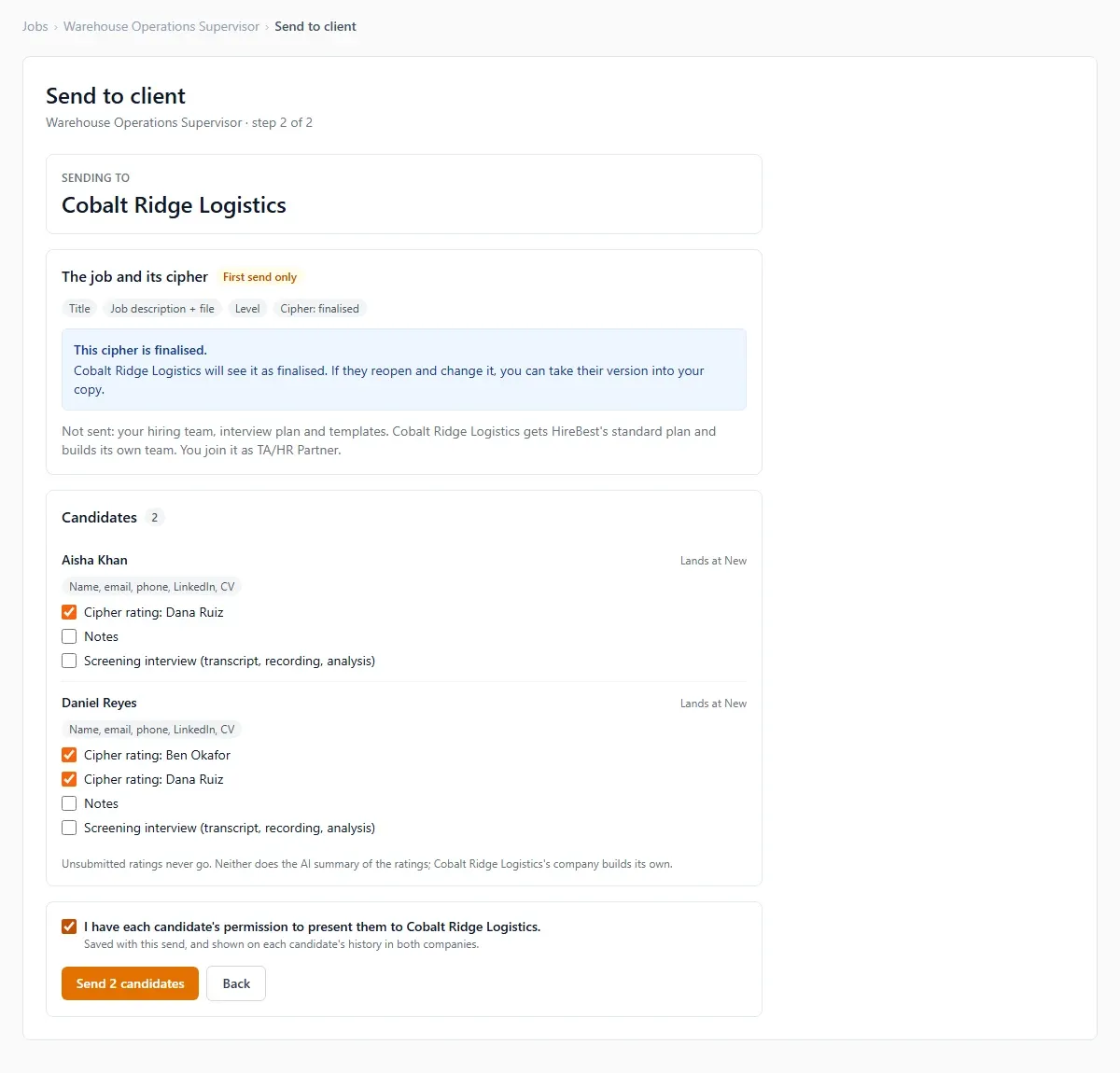
Check the review screen. It names the company you are sending to in large type.
- The job and its cipher (first send only): the title, the job description and its file, and the level. The cipher goes in the state it is in: a draft arrives as a draft, a finalised cipher as finalised. Your hiring team, interview plan and templates are not sent; the client gets HireBest's standard plan and builds its own team, and you join it as TA/HR Partner.
- Each candidate: their name, email, phone, LinkedIn link and CV always go. Each submitted cipher rating goes too, labelled with who made it; untick any you want to hold back. Tick Notes or Screening interview (transcript, recording, analysis) to share those as well; both are off unless you tick them. Unsubmitted ratings and the AI summary of the ratings never go.
- No cipher rating: if a candidate has none, HireBest warns you that the client will see little evidence. Tick I understand to go on.
-
Tick I have each candidate's permission to present them to your client.
-
Select Send (the button names how many candidates go). Everything lands in the client's company at once, or nothing does.
What happens next
-
In the client's company, the job appears the first time, with its cipher. Each candidate arrives at New on that job, marked "Sent by" you with the date. The client's hiring manager and talent acquisition partners are notified in HireBest and by email; on a first send, the client company's Admins and Super Admins are too. You are not notified of your own send.
-
You are on the client's job as TA/HR Partner. On that job you can see the candidates, interviews, ratings and notes, move candidates, add notes and update your rating. The client can change your role on the job or remove you.
-
In your company, the job shows "Sent to" the client, and each sent candidate shows "Sent" with the date. The sent application is locked: it shows "Sent to {client} on {date}" with View in client's company, which switches you into the client's company and opens their copy. Make every later update to that candidate for that job there.
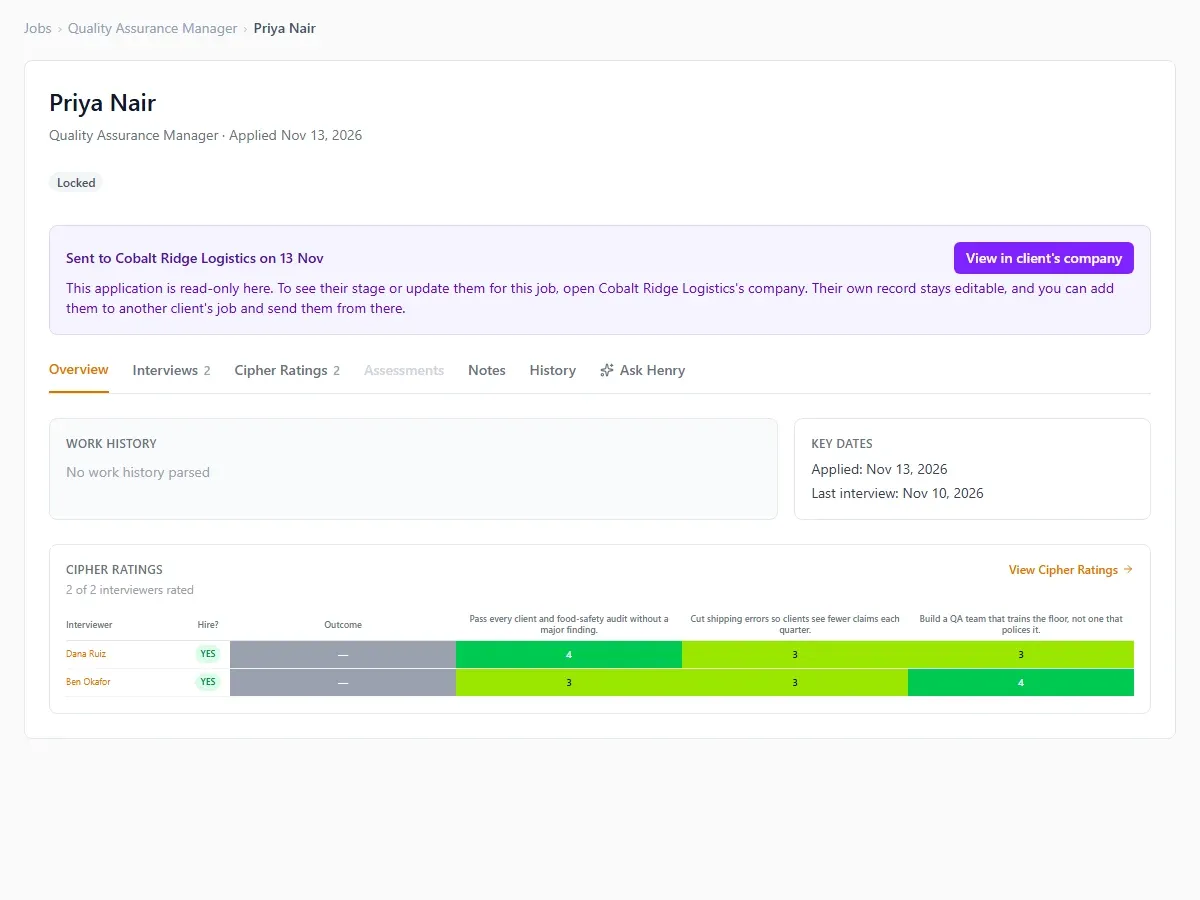
The candidate's record itself stays open for their other jobs, so you can still send them to a different client from another job.
-
Both companies record the send on the candidate's history: who sent, from which company, into which, when, what went, and your permission tick.
-
Later sends use the same steps. The job is already at the client, so only the candidates you pick go.
When the client changes the cipher
After the first send, the client's copy of the cipher leads, and your copy is locked: your job shows "Cipher locked" and the cipher can't be edited in your company.
If the client changes its copy, your job shows "{Client} changed the cipher on {date}" with Take the client's version. Select it to bring your copy into line with the client's. Ratings you have already made stay attached to the same points. A point the client removed is deleted from your copy unless one of your ratings uses it; then it stays, marked "Removed by {client}". Nothing changes in your copy until you select the button.

Problems and recovery
- No Send to client button: your company is not a recruiter company, or you can't manage this job. Ask your organization administrator, or contact support@hirebest.ai.
- The client's company is not in the list: you are not a member of it. Ask the client's administrator to invite you, or contact support@hirebest.ai.
- "Build the cipher for this job before sending it.": the job has no cipher. Build it, then send.
- You sent a candidate to the wrong company: you can't undo a send. Contact support@hirebest.ai, who can remove it.
- You want to withdraw a candidate: reject them in the client's company, with a note, as any member of the job's team can.
- "Sent to {client} on {date} · No longer available in {client}'s company": the client deleted its copy, or you can no longer see it. Your copy stays locked; contact support@hirebest.ai if you need it cleared.
- "The send could not be made. Nothing was sent. Try again.": nothing was copied. Try again; if it keeps failing, contact support@hirebest.ai.