
Set job levels and rejection reasons
Your teams choose a job level when they create a job, and a reason when they reject a candidate. Keep both lists short and in your company's words.
Who can do this
Admins and Super Admins.
Job levels
-
Click your organization's name at the top of the sidebar, then click Admin.
-
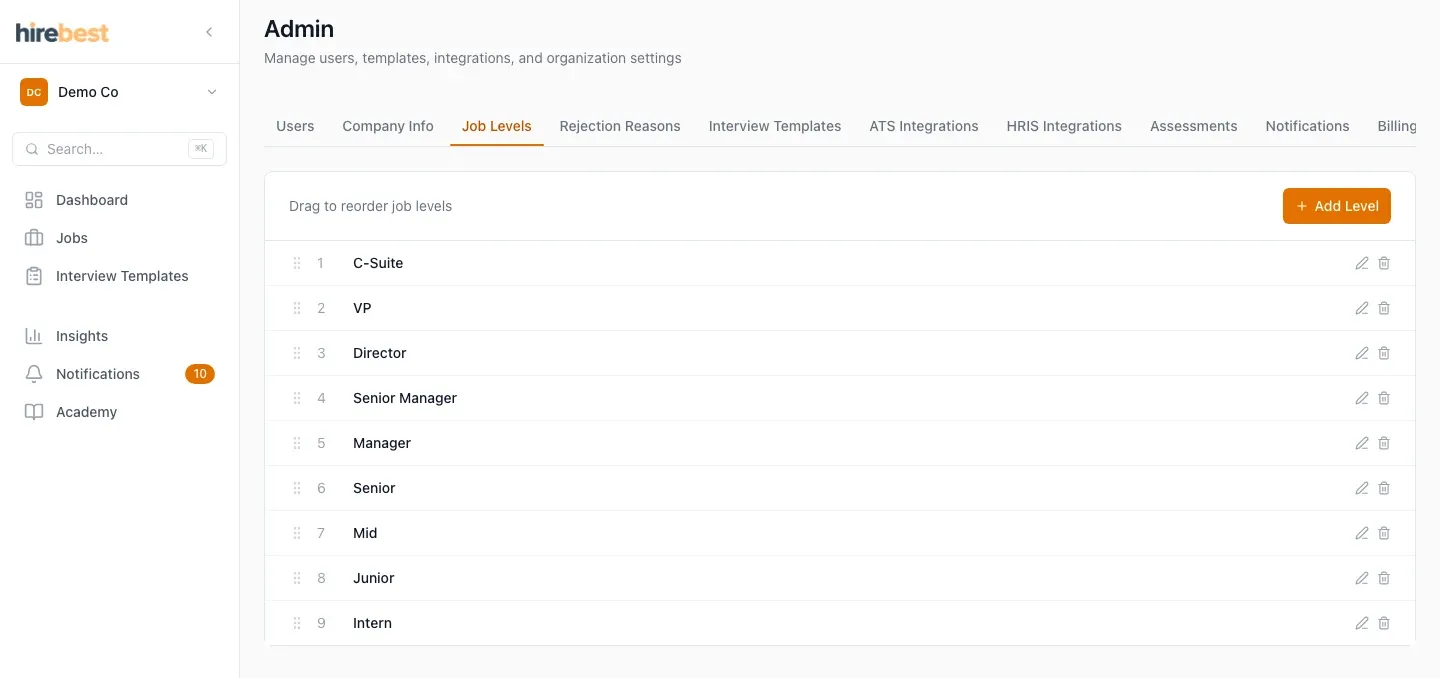
Open the Job Levels tab.
-
To add a level, click Add Level, enter the Level Name (for example, Senior Manager) and save.
-
To change a level, click its pencil icon.
-
To change the order, drag a level up or down.
Rejection reasons
-
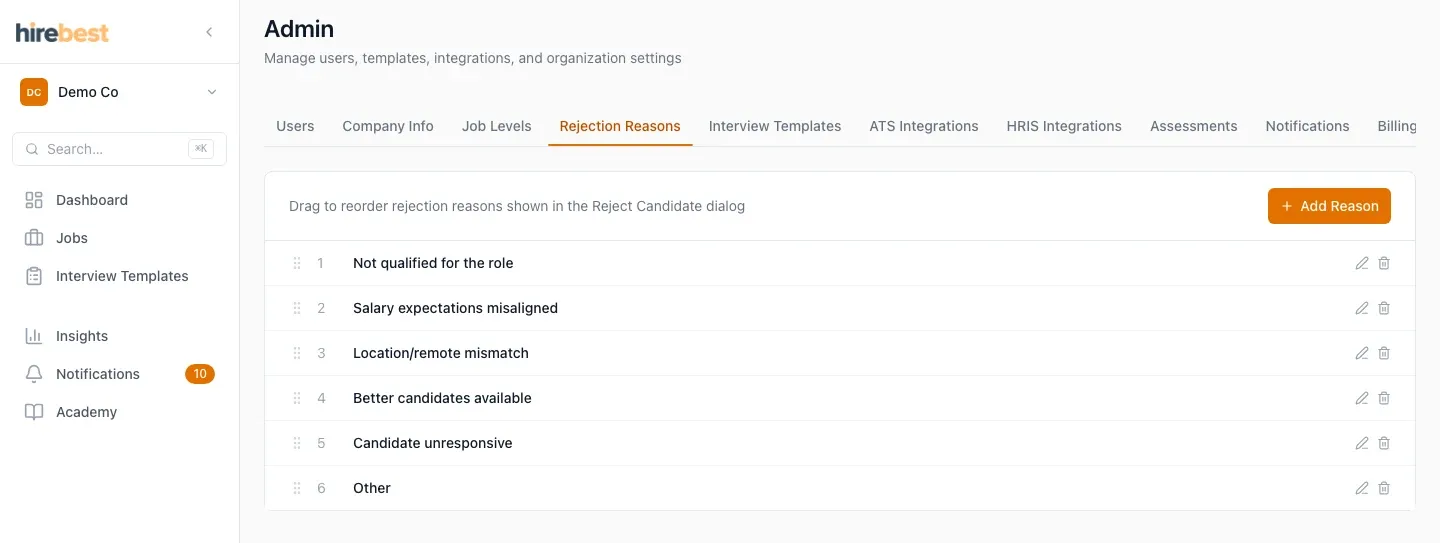
Open the Rejection Reasons tab.
-
To add a reason, click Add Reason, enter the Reason (for example, Not qualified for the role) and save.
-
Drag the reasons into the order you want. The Reject Candidate dialog shows them in this order.
What happens next
New jobs and new rejections use the updated lists.
Common problems
- A level or reason is still there after you delete it: refresh the page. If it is still there, contact support.