
Read a candidate record
Use the candidate record to understand the person, their current application and the evidence gathered so far.
Who can do this
Members with access to the candidate’s job can view the portions of the record allowed by their role.
Before you begin
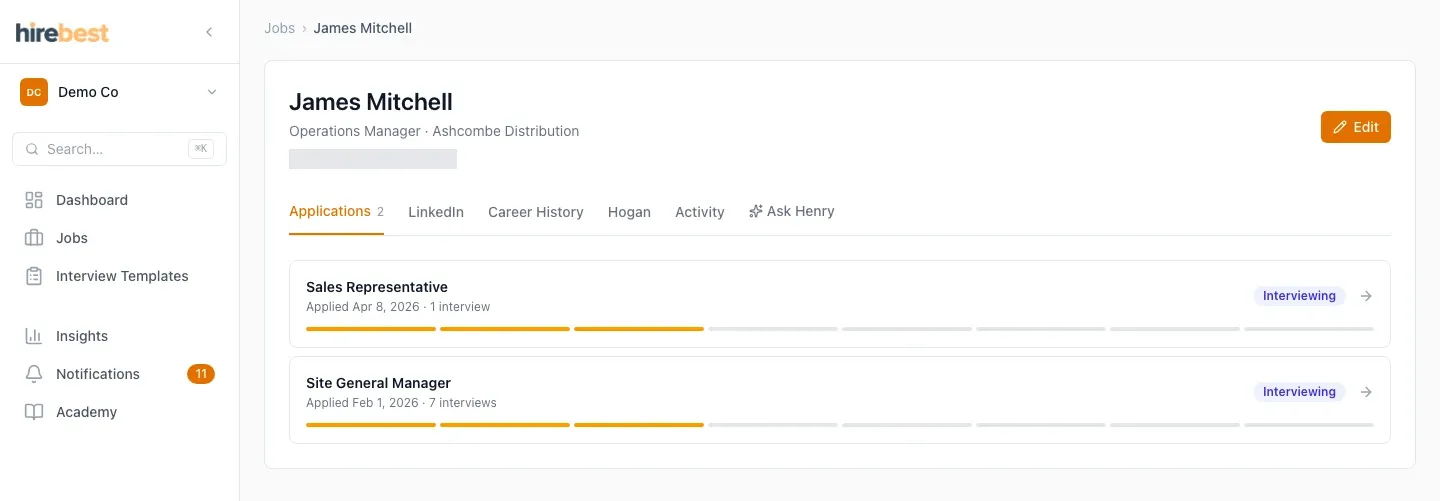
Open the candidate from the correct job. The same person may have separate applications for different jobs.
Review the record
-
Check the candidate name, job and current application stage.
-
Review the résumé or career history available to you.
-
Use the interview and assessment areas to understand completed and upcoming work. Open the application from the candidate’s Applications tab to see its Interviews, Cipher Ratings, Assessments, Notes and History tabs. If your organization uses Hogan, the Assessments tab shows the current Hogan status. When the report is ready, it also shows the results and the report PDF.
A grey tab has nothing in it yet. Select it to read what it will show. For example, Cipher Ratings fills after an interview is complete. Assessments is grey when the job has Hogan assessments off and the application has no Hogan order or request.
-
Treat AI-generated summaries as aids; return to the underlying evidence for hiring judgments.
Add a note and mention a colleague
- Open the Notes tab of the application.
- Type the note. Press Enter to add it, or Shift+Enter to start a new line.
- To ask a colleague, type @ and their name, then pick them from the list. They get an email and a notification that open this note.
The list shows only the people who can already see this application. See Mention a colleague.
What happens next
Actions taken from the record remain associated with this application. Interviews, ratings and decisions build the evidence trail for the job.
Common problems
- Expected evidence is missing: it may not have been collected, processed or shared with your role yet.
- The stage looks wrong: confirm you opened the intended application before changing it.
- A summary appears incomplete: review the résumé, transcript or submitted rating that supports it.